Showing posts with label Gmail Apps. Show all posts

Saturday, November 2, 2013

Join the 5 million businesses using Google Apps

Join the 5 million businesses using Google Apps

Apps to fit your business & It's available in your Gmail Apps account

Gmail

Email with Google-powered search, up to 30GB of storage, offline support, custom email addresses, and much more.
Learn more

Calendar

Easily schedule meetings at times that work for everyone, get meeting reminders, and share calendars.
Learn more

Drive

Google Drive allows you to store your files in the cloud, share them, and have access to them from anywhere.
Learn more

Docs

Create, share and work on documents with your whole team in real-time.
Learn more

Sheets

Manage spreadsheet data faster with click-to-edit charts and discussion style comments.
Learn more

Slides

Create presentations together, embed videos, and never press save again.
Learn more

Monday, August 27, 2012

Google Apps Tips: Enhance Your Gmail Signature

Google Apps Tips: Enhance Your Gmail Signature

Enhance Your Email with Rich Text Signatures

Email signatures are a way to provide the recipient with some information about you – the sender. But, have you ever wished your Gmail signature could have a bit more pizazz rather than having it look like this?

Well, now it can! Google recently released a much-requested enhancement in Gmail called Rich Text Signatures. With rich text signatures you can add a punch to your signature through the use of enhanced formatting, links and images. Now your signature can provide the recipient with additional information – like this:

In the signature above, we:
Changed the color, font and size of Craig’s name
Allowed users to quickly contact Craig by making his email address a live link
Italicized ‘office:’ and ‘cell:’ so they stand out
Added his company logo
Added a link to the logo allowing users to access his company’s web site simply by clicking the logo

Let’s get started!

Creating your new signature is really quite simple. Click Settings > General to access your signature. There you’ll see the new feature in the Signature section. If you’ve never added a predefined signature to your email, now’s your chance.
  1. Either click the radio button to the left of the Rich Text Signature box or simply begin entering your information in the large text window.

  2. Use the icons above the text window to enhance your signature.

  3. When you’re finished, click Save Changes.

Add an image!

To add an image:
  1. Click Insert Image.
  2. In the ‘Add an Image’ dialog, enter the Web address (URL) of the image.
  3. Note that the image must reside on the Internet and cannot be an image stored on your computer. If the URL is correct, the image displays below the ‘Image URL’ field. An image that displays properly does not mean permission has been granted to use it. When selecting an image, be mindful of the fact that the image may be copyrighted. When using a company logo, select one that has been sanctioned by your organization. A good place to start is your company’s web site. To find the image’s URL, right-click on the image and, depending on your browser, select either ‘Copy Image Location’ or ‘Copy image URL . Paste the web address (URL) in the ‘Image URL’ field.
  4. Click OK.

Add a link!

To add a link to an email address:
  1. To add a link to your email address, either (a) place your cursor at the right end of the image or email address and, holding down the left mouse button, drag the cursor to the left to select it, or (b), place your cursor on part of the email address and, with your left mouse button, and quickly click 3 times to select it.
  2. Click the Link icon.
  3. Your email address should now appear in blue text and underlined.

To add a link to an image:

  1. Depending on your browser, you may need to place your cursor at the right of the image and, holding down the left mouse button, drag the cursor to the left to select it. In other browsers, you may find you can simply click on the image to select it.
  2. Click the Link icon to display the ‘Edit Link’ dialog.
  3. Enter the URL, such as your company’s web address, into the ‘To what URL should this link go?’.
  4. Click Test this link to verify that the link is correct.
  5. If the link opens the correct page, click OK.

Before sending out our signature for the world to view, it’s a good idea to send yourself an email containing your new signature. If you need to edit it, just return to the signature section on the General tab and make your changes.

Note: If you are creating or viewing your image link in Mozilla Firefox or Microsoft Internet Explorer, you may notice a colored border around the image. This is normal and is designed to inform users the image contains a link. Users viewing your linked image in either of these browsers will also see the colored border.

Source: http://www.cloudsolutions.co.uk/training/google-apps-tips-enhance-your-gmail-signature/

Monday, August 6, 2012

How to stop receiving duplicate email messages

How to stop receiving duplicate email messages

Getting duplicate emails via POP3 connection in Microsoft Outlook is quite a common issue. To reduce the possibilities on having duplicates email:
1. Make sure that there is no duplicates email account setup on the same MS Outlook.
2. Make sure that there is only one MS Outlook is running. Check on the task manager to make sure that there is no duplicate outlook.exe instance running on the same machine. Duplicate instances of outlook.exe running can produce duplicate messages
arriving at the same time. You will need to then determine why two instances of Outlook were running in the first place.
3. Make sure that you do have Service Pack 2 installed if you are using MS Outlook in Windows XP. You can check on the updates at http://office.microsoft.com/en-us/officeupdate/default.aspx
Between to fix the problem, please try:
  1. Close the Ms Outlook to disconnect the POP3 access (This is to prevent your email account being locked in the server)
  2. Login to your webmail account
  3. Check the inbox and Remove the unwanted emails, spam mails or large size emails
  4. Login out the webmail
  5. Reopen the Ms Outlook and try again to receive the emails via POP3 connection
Additional information on the duplicate emails issue can be found at http://support.microsoft.com/?kbid=284404
PayPal: Transaction Fees for Domestic Payments

PayPal: Transaction Fees for Domestic Payments

Sending Money

It’s always free to send money to friends and family when you use your PayPal balance or bank account. Fees apply only if the sender uses a credit or debit card, or if you receive any payment for goods or services. There are also:
  • No monthly fees to maintain a PayPal account.
  • No setup fees.
  • No gateway fees.
  • No fees for multiple eBay and merchant tools.

Receiving Purchase Payments


Discounted Merchant Rate:


Withdrawal Funds
PayPal offers the following options for withdrawing funds from your PayPal account. 


Fee for Singapore:
https://www.paypal.com/sg/cgi-bin/webscr?cmd=_display-fees-outside

Tuesday, July 24, 2012

Google Apps Mail -- Set up POP in mail clients

Google Apps Mail -- Set up POP in mail clients


We offer instructions for configuring some clients not in our supported client list. If you encounter difficulties, we suggest contacting your mail client's customer support department -- we're unable to provide assistance for clients not in our supported POP client list.


 Mail Client Settings:
  1. Apple Mail
    http://support.google.com/mail/bin/answer.py?hl=en&answer=181714
     
  2. Windows Mail
    http://support.google.com/mail/bin/answer.py?hl=en&answer=86383
     
  3. Thunderbird
    http://support.google.com/mail/bin/answer.py?hl=en&answer=180193
     
  4. Outlook 2007/2010
    http://support.google.com/mail/bin/answer.py?hl=en&answer=86374
     
  5. Outlook 2003
    http://support.google.com/mail/bin/answer.py?hl=en&answer=75291
     
  6. Outlook Express
    http://support.google.com/mail/bin/answer.py?hl=en&answer=76147
     
  7. Other Windows Client Source “Set up POP in mail clients”
    http://support.google.com/mail/bin/answer.py?hl=en&answer=13287


SmartPhone Settings:
  1. iPhone
    http://operionweb.blogspot.com/2012/03/gmail-apps-iphone-setting.html
     
  2. Android
    http://operionweb.blogspot.com/2012/03/using-google-apps-on-your-android-phone.html
     
  3. Blackberry
    http://operionweb.blogspot.com/2012/03/use-google-apps-on-blackberry.html

Tuesday, July 3, 2012

Gmail Apps Storage Increase

Gmail Apps Storage Increase


The Google Apps Email Storage!

Gmail offers 10 GB of free storage for your messages and attachments, and we're adding more space as fast as we can. Your storage use is based on the size of all of the messages and attachments in your mail, including those in Spam and Trash. You can check how much space you're using and your storage limit at the bottom of any Gmail page.
If you approach your storage limit, the quota indicator will change from green to red. If you go over your limit, incoming messages to your account will be returned to the sender.
If you've hit your limit and need to clear space, you'll need to move messages to Trash and permanently delete them from there.
To find messages that are larger in size due to attachments, try using advanced search operators such as has:attachment or filename:mov.
To move a message to Trash: To permanently delete a specific message: To permanently delete all of the messages in your Trash at once: Messages left in Trash for 30 days will be permanently deleted automatically. Messages that are permanently deleted, manually or automatically, cannot be recovered.


Source: http://support.google.com/mail/bin/answer.py?hl=en&answer=6558
Source: http://daggle.com/pondering-email-conservation-hitting-gmails-storage-limit-1395

Sunday, June 3, 2012

Google Apps Email Sending Limits

Google Apps Email Sending Limits


If your sending is not much, I can suggest you to use Google Apps to manage your email.
This is because Google Apps is free and a lot more features available. Few thing that is interested to me is,

  1.  Sync the email between your smartphone and webmail
  2. Google document, make easy for your team/colleagues create document (spreadsheet, word) and share with the selected person.

You can read more information about Google Apps sending limit:

Monday, April 30, 2012

Domain Email vs. ISP "Free" Email

Domain Email vs. ISP "Free" Email

Written by Johnny Samsky Monday, 23 November 2009 19:41 

Are you still using your ISP email instead of your domain email for your electronic business correspondence?

You may be asking yourself: "Domain email - what is that? Isn't an email address an email address? What difference does it make what email address I use?" 

When you signed up for Internet access, your provider probably issued you an email address as part of the Internet connection account (example yourbusiness@yourISP.com ). Or you may have registered a Yahoo or Hotmail account for email correspondence and use these addresses for your business.
f you register a domain name or have a web site, you may also have the capability of domain based email (example: sales@yourcompany.com ) through the domain registrar or your hosting service.

Many people find this email mumbo-jumbo to be very confusing. After all, their business name is in the first part of the email address they registered with their ISP - right? Isn't that good enough for people to know who they are?

Let's take a look at the differences.
Every time you send out an email message using an email address with an extension that is not your domain (the part after the @ sign), you are branding a company, whether it is your ISP, a free email provider, or your company. Why not brand your own business?
Let's say I have an email address of clearwaterwebsolutions@hotmail.com . Many people know that you can remove the first part of the email address from the @ sign forward and go to a web site? In this example, my email address is clwwebsolutions@hotmail.com . If we remove the 'clearwaterwebsolutions@' we end up with hotmail.com.
Now, if I am using my domain email address of info@clearwaterwebsolutions.com and we remove 'info@', my domain name is what remains-clearwaterwebsolutions.com.

Which web site would you prefer they go to from your email messages?
 This is also another way of branding your domain name. Every email message you send will contain your web site address. If you are using any other email address you are losing potential customers.

Another advantage to using your domain email is that your email address doesn’t change as long as your domain name is registered.
For example, if you are using your ISP email address and move or decide to change Internet connection services, your email address will change. Another situation is if your ISP changes hands or is bought by another company, your email address may change without you having any say about it.
You will need to contact everyone in your address book and let them know your new address. If your email address has been used for any kind of promotion for your web site you are stuck with it on the printed materials until you have new ones printed. Or if your email address has been used for any kind of promotional activities it is almost impossible to try to find every place online that has your email address and have it changed. If your email address is listed with your contact information with your domain registration, you will definitely want to have it changed immediately or you will have a heck of a time making any kind of changes to your registration records.

If you consistently use domain email for all of your business correspondence you can use whatever ISP you chose, you can move as many times as you want to, and you can host your site wherever you chose (as long as domain email is available with the hosting service). You don't have to worry about notifying everyone in your list that you changed Internet connection providers or that you have moved. You don't have to reprint all of your advertising materials. You don't have to worry about important messages not getting to you because you no longer have an outdated email address.

Another advantage to domain email is that employees can each have an individual email address ( employee@yourdomain.com ) . You can also use email aliases for various purposes such as sales@yourdomain.com , info@yourdomain.com , etc.) all using one main address. Aliases can be very handy for marketing purposes and organizing email, but that is a whole other subject. You can find more information about this topic at http://www.i-m-r-c.com/article/pip4.htm.

If you are serious about the success of your business online, you will definitely want to use your domain email for ALL email correspondence.

Source:[imrc.info]

Sunday, April 29, 2012

Getting started with IMAP and POP

Getting started with IMAP and POP

What is POP and IMAP?
POP and IMAP is what allows you to download messages from Gmail's servers onto your computer so you can access your mail with a program like Microsoft Outlook or Thunderbird, even when you aren't connected to the Internet. 
 
How much does POP and IMAP cost?
POP and IMAP access are free for all Gmail users. 


Monday, April 2, 2012

Create Email Addresses Connected To Your Blogger Custom Domain Plus Access DNS Settings And More

Create Email Addresses Connected To Your Blogger Custom Domain Plus Access DNS Settings And More

This week we looked at using custom domains on Blogger Blogs, why you should get a custom domain and the steps to buy and connect a custom domain on Blogger.Those posts have been popular and I'm delighted to see many of you have took my advice and bought domains for your blog getting rid of the ugly blogspot.In those posts i mentioned Google Apps and how when you buy a domain through Blogger you get a free Google apps account.Google apps actually offer some great features that are all available to you once you buy your domain.Two of the main features of Google apps are the option to create Email addresses associated with the domain you bought.So you can create for example yourname @yourblog.com or info @yourblog.com and so on.Another feature of Google apps is the option to access your DNS or Domain Settings.So you can log into your domain host account and access things like Cname records.

In this video post i do my best to explain the whole process from accessing your Google apps account to creating multiple Emails connected to your domain, enjoy !


Google Apps Video Tutorial


That's it for this Blogger Tip, have to admit it was hard to explain so the video went a bit long (As did the title of the post :p).Luckily YouTube did take the full video so hopefully you have learned just some of the Google Apps features available to you.

Remember Google apps offer many many more features and we only touched on the basics, you should take 30 minutes when you get the chance to look through all it offers.The Google Apps Support center is a great place to start.

Drop Your Comments And Questions Below.

Tuesday, March 6, 2012

What is Google Apps?

What is Google Apps?


This video explores how Google Apps increases user productivity by enabling users to quickly communicate and collaborate more efficiently and effectively.

Monday, March 5, 2012

Google Apps Email on SmartPhone

Google Apps Email on SmartPhone

Operion's email is provided through Google's GMail.  GMail has IMAP instructions available for all users to help configure your email client.  Due to the popularity and convenience of smart phones we have put together some additional instructions and tips for the iPhone, Android, Blackberry, and Windows Mobile. 

Other Source:
Access mail from Windows® Mobile

Access mail from Windows® Mobile

To take advantage of this feature, you must first enable Google Sync for your domain.

Once Google Sync is enabled for your domain, have each user follow these instructions on their Windows® Mobile device.

  1. Important: Back up all contacts and calendars currently on your phone to your computer.
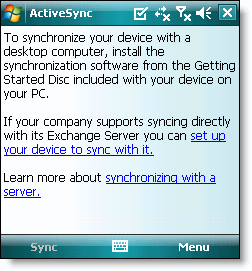
  2. Open the Microsoft Exchange ActiveSync application on your device's home screen.
  3. Click set up your device to sync with it.

    Google sync windows mobile
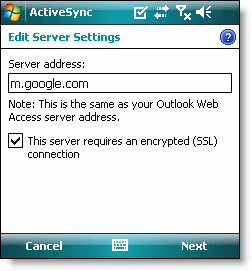
  4. Enter m.google.com as the server address.
  5. Ensure that the SSL option is selected.

    Google sync windows mobile server settings
  6. Click Next.
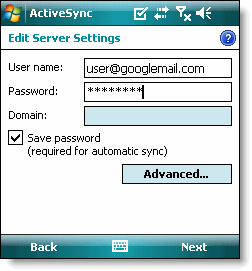
  7. Enter your full Google Apps email address as the User name, and then enter your password. (Leave the Domain field empty. If your device requires a domain name, enter google.)

    Google sync windows mobile mail
  8. Click Next.
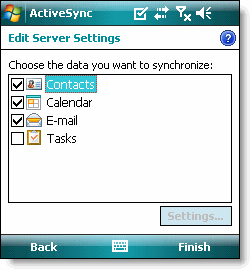
  9. Check Contacts, Calendar, or Email, depending on which you'd like to sync. (Tasks is not supported and will lead to an error if checked.)
  10. Click Finish.

    Google sync windows mobile data to sync
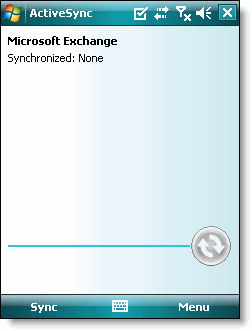
  11. Press the Sync softkey on the left to synchronize.

    Google sync windows mobile

That's it! You can now access Gmail from Windows Mobile.

Source: [Google]
Use Google Apps on an iPhone

Use Google Apps on an iPhone

Google Apps works great on iPhones and other iOS products, where you can access your email, contacts, and calendar using the device's built-in apps. This is easy to set up, using Google Sync.
Want quick access to your apps? Skip all this and access your apps in a moblie browser by visiting http://mail.google.com/a/operion.com.my on mobile Safari.

Step 1: Enable Google Sync for your domain

  1. Go to the Settings tab above. Then select Mobile from the list of services at the left. Or just  click here.
  2. Select the radio button next to Enable Google Sync.
  3. Click Save changes.

Step 2: Sync an iPhone with Google Apps

After you enable Google Sync for your domain, have each user follow these instructions on their iPhone.
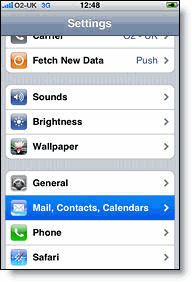
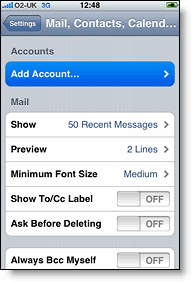
  1. Open the Settings application on the iPhone's home screen.
  2. Open Mail, Contacts, Calendars.
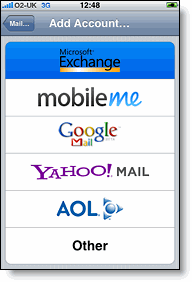
  3. Tap Add Account....
  4. Select Microsoft Exchange.
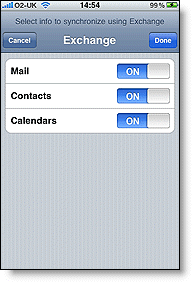
    settings mail calendar contacts on iphone  add mail calendar contacts account on iphone  microsoft exchange
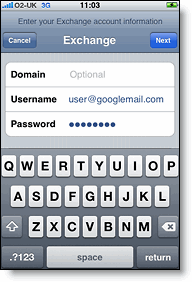
  5. In the Email field, enter your full Gmail address.
  6. Leave the Domain field blank.
  7. Enter your full Google Apps email address as the Username.
  8. Enter your Google Apps password as the Password.
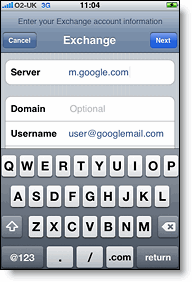
  9. Tap Next at the top of your screen. (Choose Cancel if the Unable to Verify Certificate dialog appears.)
  10. When the new Server field appears, enter m.google.com.
  11. Press Next at the top of your screen again.
    exchange domain  exchange server
  12. Select the Google Apps services (Mail, Calendar, and Contacts) you want to sync.
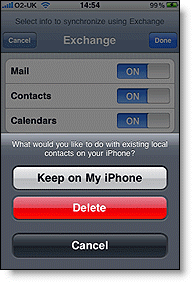
  13. Unless you want to delete all the existing Contacts and Calendars on your phone, select the Keep on my iPhone option when prompted. This will also allow you to keep syncing with your computer via iTunes.
    To sync only the My Contacts group, you must choose to Delete Existing Contacts during the Google Sync install when prompted. If you choose to keep existing contacts, it will sync the contents of the "All Contacts" group instead. If there are no contacts on your phone, the latter will happen -- the contents of your All Contacts group will be synced.
    iphone exchange mail calendars contacts  exchange keep on my iphone
That's it! You can now access Google Apps from your iPhone. If you have Push enabled on the phone, synchronization starts automatically. You can also just open the Mail, Calendar or Contacts app and wait a few seconds to start a sync.

Source: [Google]
Use Google Apps on a BlackBerry®

Use Google Apps on a BlackBerry®

Use Google Apps on a BlackBerry®

You and your users have these options for accessing Google Apps from a BlackBerry®:
  • BlackBerry® mail through IMAP. Use the BlackBerry's native mail application to access your Google Apps mail (requires using your BlackBerry carrier's Internet service).
  • Google Apps Connector for BlackBerry® Enterprise Server. Synchronize users' Google Apps mail, calendar, and contact data with your organization's existing Blackberry® Enterprise Server.

Set up BlackBerry® mail via IMAP

This method is no longer officially supported but we're happy to provide setup instructions, anyway.
You can access your mail from the native BlackBerry® mail application by setting it up as an IMAP client for your Gmail account. Using IMAP is nice in that doing something on the BlackBerry, such as reading or deleting a message, is also reflected in your Gmail interface on the web (and vice versa).
Note that with IMAP, incoming email can take up to 15 minutes to be delivered to the BlackBerry, Gmail labels don't appear on the BlackBerry®, and conversation threads appear as individual messages.

What each user should do

  1. Make sure you've enabled IMAP in your Gmail account.
  2. On your BlackBerry®, navigate to your home screen.
  3. Select the icon that lets you set up email (this can be called Setup, Setup Wizard, Email Setup, BlackBerry® Set-up, E-mail settings, or Personal Email Set-up).
  4. Follow the setup instructions provided on your device to create a new email account.
  5. Be sure to enter the following:
    • Mail Server: imap.gmail.com
    • Username: [your full Gmail address (username@operion.com.my]
    • Password: [your Google Apps password]
    • IMAP Port: 993
  6. Allow the system to add your account, but do not enter your Google Apps password into the utility boxes (this causes the system to default to POP3 instead of IMAP).
  7. Select Next.
  8. Select Next again (bypassing the Additional Information Required section).
  9. Select your account type, and then select Next. You may encounter a "We were unable to configure..." error. If so, select I will provide the settings to continue.
  10. Select the option that mentions IMAP/POP.
  11. Select I will provide the settings..., and then select Next.
  12. Select Set up existing email account...
  13. Enter your Gmail account information here, with imap.gmail.com as your mail server.
  14. Select Next.
  15. Select Save.
When setup is successful, you receive a confirmation message, and a new mailbox icon (labeled with your Gmail address) appears on your BlackBerry®'s home screen.


Google Apps Connector for BlackBerry® Enterprise Server

Want this feature? Upgrade now to Google Apps for Business (free trial).
If you have a Blackberry® Enterprise Server at your organization and want to keep using it to manage users' BlackBerry® devices, no problem. Just use Google Apps Connector for BlackBerry® Enterprise Server. With Google Apps Connector, people in your organization can keep using their built-in BlackBerry® apps to access their Google Apps email, calendar, and contacts. And administrators can keep using use your BlackBerry® Enterprise Server to manage these devices (doing remote wipes, policy management, and so on).
Learn more about Google Apps Connector for BlackBerry® Enterprise Server.

How to use Google Apps Connector for your domain

  1. Download Google Apps Connector.
  2. Install and set up Google Apps Connector on your BlackBerry® Enterprise Server.
  3. Have each user follow these instructions to set up their BlackBerry® to connect to Google Apps.
When you're done, click Next and we'll move on to the next step.


Source: [Google]
Using Google Apps on your Android phone

Using Google Apps on your Android phone

Using Google Apps on an Android is really easy. Just add your Google Apps account to the phone, then select the services you want to use. Each user should follow these instructions on their own phone.
  1. Open the Accounts & Sync Settings screen on your phone. You can do this in Contacts by pressing Menu and touching Accounts, or directly in the Settings application.

  2. The Accounts & Sync Settings screen displays your current sync settings and a list of your current accounts.
  3. Touch Add account.
  4. Touch Google to add your Google Apps account.
  5. Touch Sign in when prompted for your Google Account.
  6. Enter your full Google Apps email address as your username, and then enter your password.
  7. Select which services you'd like to sync between your phone and Google Apps.
That's it! You can now use Google Apps from your Android.

Source: [Google]

Saturday, March 3, 2012

Gmail Apps: Delivered on Multiple Computers

Gmail Apps: Delivered on Multiple Computers

Do you access Gmail messages on two or more computers via POP clients like Outlook or Thunderbird. The problem (or advantage) with POP access is that once an email message gets downloaded onto one computer, it is skipped by other email clients.


To explain that further – let’s say you have configured both your personal laptop and work computer to download emails from your Gmail account via POP access. Now if the emails are downloaded to the laptop first, they wont be available on your work computer (and vice-versa).

While this is a time-saving feature, your emails are split across different computers. To trick your POP client into downloading Gmail emails that are already fetched by other clients, just use the recent mode in Gmail.

Solution A:
Open your Outlook (or other POP client) and add the word “recent:” to your gmail username. That means if your gmail address is “john@gmail.com” replace that with “recent:john@gmail.com”

NOTE: This trick will also work on custom domains if you are using Google Apps with Gmail.


Solution B:
Use IMAP. POP3 isn't the only mail protocol in the world. If your mail service supports the Internet Message Access Protocol (IMAP), you can set up your client to use that. Rather than simply downloading, IMAP syncs your local client inbox with the one on your email service's server. That way, every computer or phone you check your mail with, provided you set up IMAP on all of them, sees the same messages.

NOTE: This would requires you to recreate the account in IMAP


Preventing duplicate Gmail IMAP messages in Mail/Inbox

Click here: http://echeng.com/journal/2010/09/23/preventing-duplicate-gmail-imap-messages-in-mail-app/


Source: [http://www.labnol.org] [http://www.pcworld.com] [Google.com]